
The highlight of this edition is a CRM that does not let a card move forward incomplete: the pipeline stage can require Catalog items, the team's tasks get their own screen with deadlines and owners, and the Catalog imports spreadsheets with help from AI.
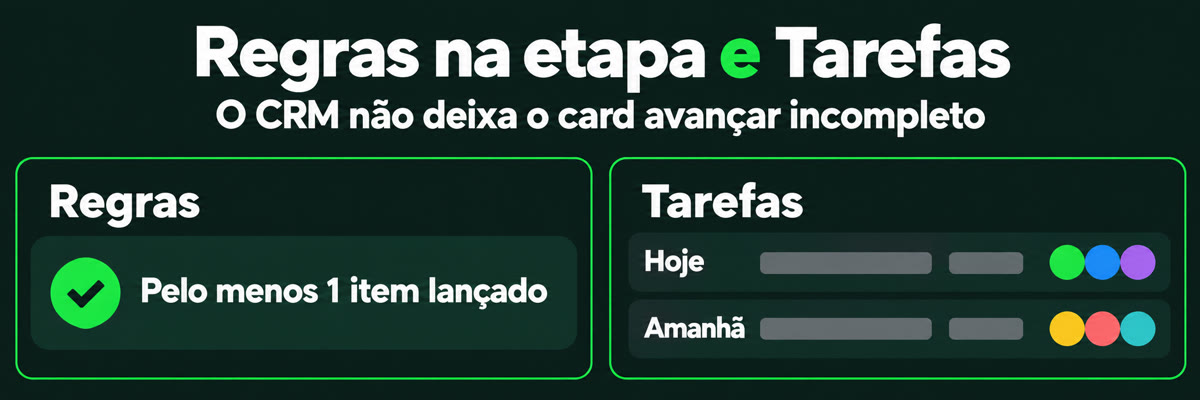
Stage rules: require items before moving the card
In Deal and Service order pipelines, the "Itens" (Items) rule sets "Pelo menos" (At least) how many Catalog items must be added to the card (from 1 to 20). Whoever tries to move the card without them sees "N itens lançados" (N items added) in the "Complete para mover" (Complete to move) drawer and clicks "Adicionar item" (Add item) right there.
- Open the stage rules of the pipeline and choose "Itens".
- Set "Pelo menos" to how many Catalog items must be added.
- To remove a requirement, click its X.
"Responsável" (Owner) and "Valor numa faixa" (Value in a range) appear disabled, with the "Em breve" (Coming soon) label. To require the Value or the Owner to be filled in, use "Campos preenchidos" (Filled-in fields).
CRM tasks: view, filter, complete and open the record
In CRM › Tarefas (Tasks), the team sees everyone's tasks or only their own, filters by status, deadline, owner and pipeline, searches by task or contact, and edits, completes, reopens, cancels and deletes (deleting asks for confirmation). When a task is linked to a record, its name opens the record. The list shows 20 tasks at a time.
Creating a task from this screen is still "Em breve": for now, it starts in the contact's file, the deal's file or the Inbox.
Catalog: AI-assisted import
In "Arquivo" (File), choose "Planilha que eu já tenho" (A spreadsheet I already have) to upload a spreadsheet that does not use the Hub's template. The AI suggests which field of the format each column goes into, and the "Certeza" (Confidence) column shows whether the suggestion is High, Medium or "Baixa — confira" (Low — check). Check it, change it or choose "Ignorar esta coluna" (Ignore this column) and continue through the same preview. Only the column names and up to 3 examples go to the AI model.
Questions? Write to [email protected].